Produkt
Jak dodać asystenta AI do witryny B2B
Osadź asystenta AI na stronie B2B: wczytaj zatwierdzoną wiedzę, skonfiguruj przechwytywanie leadów, wklej jeden tag script i kieruj Hot/Warm/Cool do Pipedrive.
Autor
The EngageLayer product & content team — guides on AI website assistants, knowledge-grounded answers, and B2B lead qualification.
Kroki
Zbierz wymagania wstępne
Zbierz klucz publiczny, zatwierdzone treści FAQ lub CSV, wybór routingu oraz dostęp do CMS lub GTM przed startem.
Wczytaj zatwierdzoną wiedzę
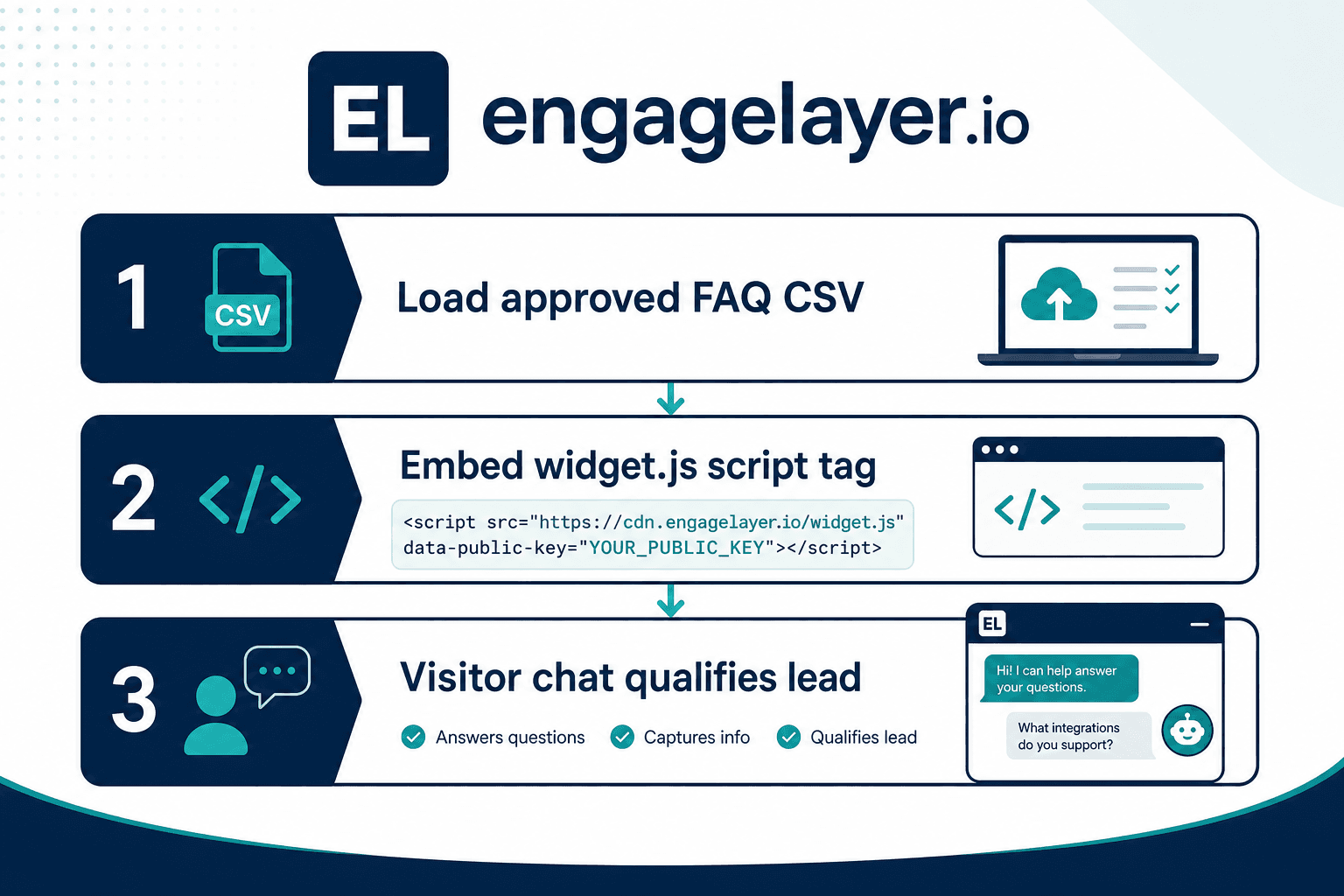
Dodaj wpisy FAQ, skupione bloki tekstu i pary Q&A z CSV w panelu. Zaplanuj crawl witryny lub dokumenty binarne z onboardingiem, jeśli potrzeba.
Skonfiguruj ton i kwalifikację
Ustaw styl powitania, granice tematów wrażliwych oraz reguły przechwytywania Hot / Warm / Cool tylko z polami, których użyjesz.
Osadź skrypt widgetu
Wklej asynchroniczny snippet CDN z kluczem publicznym w WordPressie, GTM lub szablonach HTML. Dodaj opcjonalne atrybuty data-position i data-language.
Przetestuj w podglądzie
Przeprowadź dziesięć realistycznych skryptów odwiedzającego w podglądzie, sprawdź cytaty i potwierdź, że nieznane pytania uruchamiają uczciwe przechwytywanie zamiast zgadywania.
Podłącz dostarczanie leadów
Podłącz Pipedrive i wypchnij testowy lead z panelu albo użyj e-maila lub webhooka. Potwierdź, że payloady Hot i Cool odpowiadają oczekiwaniom repsów.
Włącz produkcję i zrób przegląd
Opublikuj embed, zrób smoke test w incognito, przebriefuj sprzedaż o routingu i zaplanuj siedmiodniowy przebieg poprawek wiedzy z prawdziwych chatów.
Krótka odpowiedź
Dodaj asystenta AI do witryny B2B, wczytując zatwierdzoną wiedzę w engagelayer.io, konfigurując ton i przechwytywanie leadów, wklejając jeden tag script z kluczem publicznym, testując w podglądzie i kierując leady Hot / Warm / Cool do Pipedrive, e-maila lub webhooka. Asystent odpowiada tylko na podstawie treści, które zatwierdzisz, i przechwytuje leady, gdy nie może odpowiedzieć.
Ten przewodnik jest dla zespołów marketingu, revenue i ops, które chcą ugruntowanego chatbota AI z własną bazą wiedzy na stronie B2B bez przebudowy witryny i długiego projektu integracyjnego. Możesz prowadzić demand gen, odpowiadać za stronę albo wspierać sprzedaż lepszym kontekstem inbound. Celem nie jest generyczny widget, który zgaduje. To asystent AI na stronie, który zostaje w zatwierdzonej wiedzy firmy, kwalifikuje odwiedzających w rozmowie i wysyła uporządkowane leady do narzędzi, których zespół już używa.
Na koniec będziesz mieć zatwierdzone treści w engagelayer.io, asystenta skonfigurowanego pod ton i przechwytywanie leadów, widget osadzony na stronie, ukończony przebieg podglądu oraz dostarczanie podłączone do Pipedrive, e-maila lub webhooka. Większość zespołów kończy podstawową konfigurację w jednej sesji roboczej. Cięższe importy treści lub mapowanie pól CRM mogą wymagać drugiego przebiegu, ale sam embed to jeden tag script.
Czego potrzebujesz przed startem
Krótka checklista oszczędza poprawki później. Zbierz zasoby i dostęp wymienione poniżej, zanim otworzysz panel. Do podstawowej ścieżki nie potrzebujesz developera, ale ktoś, kto może edytować nagłówek strony lub tag manager, powinien być dostępny przy starcie produkcyjnym.
Jeśli treści są rozproszone po PDF-ach, starych deckach i wiki, której nikt nie ufa, zablokuj trzydzieści minut na decyzję, co bezpiecznie opublikować najpierw. Asystent działa najlepiej, gdy pierwsze wczytanie wiedzy jest małe, dokładne i jasno przypisane jednemu zespołowi.
- Przestrzeń robocza engagelayer.io i klucz publiczny widgetu z panelu
- Zatwierdzone treści do pierwszego wczytania: wpisy FAQ, krótkie bloki tekstu lub CSV z parami Q&A używanymi już ze sprzedażą
- Opcjonalnie: lista URL-i witryny do crawla (obsługiwany przez worker tier, nie ręczne kopiowanie stron)
- Decyzja o routingu leadów: Pipedrive (natywnie w MVP), e-mail powiadomień albo webhook do Twojego stacku
- Dostęp do edycji CMS witryny, stopki motywu lub kontenera Google Tag Manager
- Osoba decyzyjna, która zatwierdzi ton, pytania kwalifikacyjne i tematy, których bot nie powinien odpowiadać
Najpierw wczytaj zatwierdzoną wiedzę
Grounding jest przed embeddingiem. engagelayer.io pobiera z zatwierdzonych źródeł wiedzy, a potem składa odpowiedzi z cytatami do tego materiału. Jeśli pominiesz ten krok i najpierw wkleisz widget, odwiedzający zobaczą pustego lub zbyt ostrożnego asystenta, a Ty błędnie obwinisz kanał zamiast luki w treściach.
Zacznij od pytań, na które sprzedaż i support odpowiadają co tydzień. Granice cenowe, zakres wdrożenia, postawa bezpieczeństwa, integracje i ścieżki rezerwacji to typowe pierwsze sukcesy. Możesz rozszerzać później; nie cofniesz złego pierwszego wrażenia spowodowanego brakiem źródeł.
Źródła FAQ
Wpisy FAQ to najszybsza droga do publikacji. Każdy element powinien być jasnym pytaniem i zwięzłą odpowiedzią, za którą stoi zespół. Unikaj marketingowego waty w odpowiedziach; model powtórzy ją dosłownie pod presją. Grupuj tematy (ceny, produkt, bezpieczeństwo, support), żeby wycofywać lub aktualizować wycinki bez ruszania wszystkiego.
Gdy odwiedzający pyta o coś sąsiadującego z FAQ, retrieval i tak pobiera najbliższy zatwierdzony wpis. Jeśli nic nie pasuje, asystent powinien przyznać lukę i zaproponować przechwytywanie leadów zamiast wymyślać szczegóły. To funkcja, nie porażka, na stronach B2B, gdzie złe odpowiedzi kosztują zaufanie w pipeline.
Bloki tekstu
Źródła tekstowe pokrywają treść narracyjną, która nie mieści się w sztywnym Q&A: akapity pozycjonujące, porównania planów w prozie, harmonogramy wdrożenia albo zatwierdzone zastrzeżenia prawne. Trzymaj bloki skupione. Jeden blok na temat ułatwia aktualizacje i zmniejsza ryzyko, że stary akapit przeżyje po zmianie przekazu.
Wklejaj z jednego źródła prawdy, nie z eksportu slajdów z półzdaniami. Nazwij blok tak, żeby przyszły Ty wiedział, co zasila. Gdy product marketing zaktualizuje copy na stronie, zaplanuj odpowiadający przebieg w bazie wiedzy, inaczej odpowiedzi oderwą się od żywej witryny.
Importy CSV
Import CSV pasuje do zespołów, które już utrzymują arkusze pytanie-odpowiedź dla SDR lub makr supportu. Używaj spójnych nagłówków kolumn jak w dokumentacji panelu, jeden wiersz na parę i usuń duplikaty przed uploadem. Czysty CSV zawsze wygrywa z dużym bałaganem.
Po imporcie sprawdź wyrywkowo dziesięć wierszy ważnych komercyjnie: ceny, warunki umowy, rezydencja danych i porównania z konkurencją, jeśli w ogóle je dopuszczasz. Szybkość CSV nic nie daje, jeśli dziesiąty wiersz nadal opisuje packing z zeszłego roku.
Crawl witryny i dokumenty binarne idą inną ścieżką. Publiczne crawl URL-i działają przez worker tier, żeby nie wklejać każdej strony ręcznie. PDF-y i podobne binaria często obsługuje się w onboardingu, bo jakość ekstrakcji zależy od layoutu. Zaplanuj self-serve FAQ, tekst i CSV na dzień pierwszy, a potem dodaj crawl lub binaria z pomocą, jeśli ich potrzebujesz.
Skonfiguruj ton asystenta i przechwytywanie leadów
Ustawienia tonu kształtują powitanie, bezpośredniość i tempo przejścia do kwalifikacji. Kupujący B2B tolerują ciepło, ale karzą niejasność. Pisz instrukcje jak brief dla ostrego SDR: pomocnie, prostym językiem, bez fałszywej pilności.
Reguły przechwytywania leadów definiują, co dzieje się, gdy rośnie intencja albo kończy się wiedza. engagelayer.io klasyfikuje odwiedzających jako Hot, Warm i Cool na podstawie sygnałów, które konfigurujesz, np. pytanie o ceny, podanie timeline albo prośba o demo. Cool nie oznacza śmieci; oznacza nurture zamiast natychmiastowego pingu do sprzedaży.
Zdecyduj, jakich pól potrzebujesz. E-mail i nazwa firmy mogą wystarczyć dla Warm; Hot może uzasadniać telefon lub wielkość zespołu. Każde dodatkowe pole obniża completion. Połącz pola z jasną linią wartości, żeby odwiedzający wiedzieli, po co dzielą dane.
Ustal granice wprost: tematy, o których asystent nie może spekulować, konkurentów, których nie powinien atakować, oraz oferty, których nie może składać bez zgody człowieka. Te guardraile trzymają asystenta w zatwierdzonej wiedzy i chronią ryzyko marki na publicznej stronie.
Osadź widget
Osadzanie to jeden asynchroniczny tag script. Widget ładuje się z CDN engagelayer.io i czyta klucz publiczny, żeby pobrać właściwą konfigurację workspace. Nie hostujesz modeli na swoim originie i nie otwierasz nowych tras backendu na stronie, żeby chat działał.
Skopiuj snippet z panelu, żeby klucz pasował do środowiska. Zastąp placeholder wyłącznie prawdziwym kluczem publicznym. Opcjonalne atrybuty ustawiają pozycję i język bez kolejnego cyklu deployu.
Opcjonalne atrybuty to data-position z wartościami bottom-right lub bottom-left oraz data-language jako wskazówka locale dla chromu widgetu. Użyj ich, gdy wytyczne marki wymagają launchera w konkretnym rogu albo gdy prowadzisz witrynę w języku innym niż domyślny.
WordPress i typowe CMS
W WordPressie wklej snippet w globalny punkt wstrzykiwania stopki, wtyczkę skryptów nagłówka albo szablon stopki child theme, zależnie od polityki bezpieczeństwa. Preferuj jedno globalne include, żeby asystent pojawiał się spójnie na landingach i wpisach bloga. Unikaj dodawania skryptu tylko na homepage, chyba że celowo chcesz częściowego pokrycia.
Jeśli używasz wtyczki cache lub optymalizacji, wyklucz skrypt widgetu z agresywnej minifikacji lub reguł odroczonego ładowania, które psują kolejność wykonania. Wyczyść cache po zapisie, potem otwórz okno incognito, żeby potwierdzić, że launcher się pojawia.
Google Tag Manager
W Google Tag Manager utwórz tag Custom HTML ze snippetem osadzenia, ustaw trigger na All Pages (lub podzbiór, jeśli pilotażujesz wybrane ścieżki) i opublikuj wersję kontenera. GTM jest przydatny, gdy marketing odpowiada za wdrożenie, a engineering nie chce ruszać repo dla eksperymentu marketingowego.
Nazwij tag jasno i udokumentuj właściciela klucza publicznego. Gdy klucze rotują, zaktualizuj tag i publikuj ponownie; stare klucze dają cichą awarię widgetu, łatwą do pomylenia z blokowaniem reklam.
Zwykły HTML i strony statyczne
Na stronach statycznych lub ręcznie zbudowanych umieść skrypt przed zamykającym tagiem body w każdym szablonie, który ma oferować chat. Jeśli utrzymujesz layouty z include, wstaw snippet raz we współdzielonym layoutcie. W aplikacjach single-page upewnij się, że skrypt zostaje przy nawigacjach klienckich, jeśli framework podmienia body dokumentu.
Po deployu otwórz źródło żywej URL i wyszukaj cdn.engagelayer.io, żeby potwierdzić, że produkcyjny HTML naprawdę zawiera tag. Lokalne buildy czasem różnią się od tego, co marketing wkleja do CMS.
Przetestuj w podglądzie przed go-live
Tryb podglądu pozwala odgrywać odwiedzających bez wystawiania półgotowych odpowiedzi na rynek. Otwórz podgląd z panelu i przejdź ustrukturyzowany skrypt: zadaj dziesięć prawdziwych pytań od ostatnich dziesięciu leadów inbound, w tym dwa przypadki brzegowe, w których asystent ma przyznać niepewność.
Sprawdź cytaty przy odpowiedziach faktograficznych. Jeśli odpowiedź brzmi dobrze, ale nic nie cytuje, wyśledź, które źródło powinno było zadziałać, i napraw retrieval przed launchiem. Przetestuj też ścieżki kwalifikacji: pytanie o ceny powinno odpowiednio eskalować pola przechwytywania bez brzmienia jak przesłuchanie.
Zaproś jednego sprzedawcę, żeby grzecznie to złamał. Sprawdzi pułapki konkurencyjne i sztuczki cenowe, o których zapomniałeś. Lepiej teraz niż na żywej demo z prospectem.
Gdy podgląd przejdzie, osadź na produkcji i powtórz trzy pytania smoke w oknie incognito. Podgląd i produkcja powinny się zgadzać; jeśli się rozjeżdżają, zwykle wdrożyłeś zły klucz albo starą wersję kontenera w GTM.
Podłącz Pipedrive, e-mail lub webhook
Dostarczanie zamienia rozmowy w pipeline. W MVP Pipedrive to natywna ścieżka CRM: podłącz konto, potem wypychaj zakwalifikowane leady z panelu (dziś ręczny push; nie obiecuj w pełni automatycznej kolejki, dopóki workspace tego nie potwierdzi). Mapuj wyniki Hot, Warm i Cool na etapy lub etykiety, które zespół już respektuje. Powiadomienia e-mail pasują małym zespołom, które chcą pinga w skrzynce z kontekstem transkryptu. Webhooki pasują opsom, które chcą rozsyłać do systemów wewnętrznych.
HubSpot i Salesforce nie są natywnymi connectorami w MVP. Jeśli Twój CRM to jeden z nich, planuj routing e-mail lub webhook, aż powstanie bezpośredni connector, i unikaj obietnic natywnej synchronizacji, której jeszcze nie dostarczysz.
Dołącz fragmenty transkryptu lub podsumowania kwalifikacji w payloadzie, żeby reps otwierali rekordy CRM z kontekstem zamiast zgadywać, czego chciał odwiedzający. Przetestuj każdą trasę wymuszoną rozmową Hot i Cool w podglądzie, żeby zobaczyć realne wartości pól, nie placeholdery.
Przetwarzanie hostowane w UE jest dostępne dla zespołów z preferencjami rezydencji danych; traktuj to jako wybór wdrożenia zgodny z polityką, a nie zamiennik oczyszczenia PII ze źródeł wiedzy, których w ogóle nie powinieneś ładować.
Częste błędy
Osadzanie przed wiedzą to najczęstszy błąd. Zespoły wklejają skrypt, widzą słabą pierwszą odpowiedź i uznają chat za bezużyteczny. Widget był w porządku; warstwa retrieval nie miała nic wiarygodnego do powiedzenia. Napraw źródła i przetestuj ponownie. Objawy to generyczne przeprosiny i przechwytywanie leadów prawie przy każdej wiadomości.
Wczytywanie niezatwierdzonych treści tworzy wolniejszą porażkę. Marketing wrzuca robocze FAQ z cenami TBD, asystent cytuje je pewnie, a sprzedaż dziedziczy wściekłe follow-upy. Przypisz właściciela do każdego typu źródła i datuj przeglądy. Jeśli treść nie jest bezpieczna jako publiczna odpowiedź, trzymaj ją poza systemem, aż będzie.
Zbyt wczesne nadmierne kwalifikowanie zabija completion rates. Prośba o telefon, wielkość firmy i budżet przed odpowiedzią na podstawowe pytanie produktowe wygląda jak formularz w skórze chatu. Najpierw niech asystent odpowie na ugruntowane pytania, a potem eskaluje pola, gdy pojawią się sygnały intencji.
Wdrożenie złego klucza publicznego albo starej wersji kontenera GTM daje pusty launcher albo widget podpięty do innego workspace. Zawsze weryfikuj klucz w źródle strony po publikacji. Nazwij wersje GTM tak, by rollback był oczywisty, gdy ktoś wklei klucz testowy na produkcję.
Traktowanie Hot/Warm/Cool jako etykiet vanity marnuje routing. Jeśli wszystko ląduje w jednej skrzynce, reps przestają ufać ocenom. Ustal definicje ze sprzedażą w piętnastominutowej sesji i podłącz różne ścieżki lub SLA per pasmo. Ilustracyjne programy pilotażowe czasem przesuwają zauważalną część inboundu do umówionych spotkań, gdy routing trafia w intencję, ale Twój mix będzie inny; mierz własny lejek zamiast oczekiwać gwarancji.
Checklista launchu
Użyj tej sekwencji do kontrolowanego go-live. Pominięcie kroku to sposób, w jaki pojawiają się niespodzianki produkcyjne w piątkowe popołudnie.
- Potwierdź, że źródła FAQ, tekst i CSV są zatwierdzone, datowane i przypisane nazwanej osobie
- Przeprowadź dziesięć rozmów w podglądzie, w tym dwa celowe nieznane; sprawdź cytaty przy odpowiedziach faktograficznych
- Wklej snippet osadzenia z produkcyjnym kluczem publicznym na wszystkich docelowych szablonach lub triggerach GTM
- Ustaw data-position i data-language, jeśli layout lub locale witryny tego wymagają
- Smoke-test na żywo w incognito: launcher widoczny, trzy prawdziwe pytania odpowiedziane lub czysto przechwycone
- Zweryfikuj dostarczanie Pipedrive, e-mail lub webhook dla co najmniej jednego leadu Hot i jednego Cool
- Przebriefuj sprzedaż o definicjach Hot/Warm/Cool i miejscu, gdzie pojawiają się transkrypty
- Zaplanuj przegląd po siedmiu dniach, żeby załatać luki wiedzy z prawdziwych rozmów
Gdy checklista jest zielona, ogłoś wewnętrznie, zanim wypromujesz na zewnątrz. Reps powinni wiedzieć, że chat jest live, co liczy się jako Hot i gdzie lądują rekordy. Odwiedzający mają lepsze doświadczenie, gdy ludzie za CRM oczekują, że asystent istnieje.
Jeśli chcesz ugruntowanego chatbota AI z własną bazą wiedzy na stronie B2B bez custom buildu, zacznij od engagelayer.io, wczytaj to, czemu już ufasz, i osadź widget, gdy odpowiedzi z podglądu brzmią jak coś, co zespół wysłałby ręcznie. Następnie przeczytaj chatboty z bazą wiedzy dla B2B oraz konwersacyjną kwalifikację leadów.